WHY
Because things are faster when they look the way you expect ’em to. It’s great when things look nice, but having a pretty terminal is just as much about functionality as it is about aesthetics.
I just installed a new ParrotOS system and I don’t enjoy the default bash terminal they provide. Let’s add in some much-needed quality of life improvements!

OVERVIEW
If you don’t care, or don’t know enough to care, I suggest you follow my defaults outlined below. It will produce a nice starting point for customization without pigeonholing you into a particular way of doing things. We’ll use:
Zsh- an alternative tobashwith some cool modern features. It’s a lot easier to have autocompletion than it is in bash.Powerline- the styling system for the terminal. Includes fonts, some custom functions, etc.
Powerline can be used in a bunch of ways, but these were my desired features:
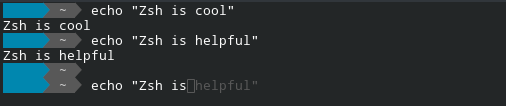
Autocomplete with greyed-out suggestion text. Zsh does autocompletion out of the box (heck, even Bash does) but not the way I like it. In my perfect world, completions should work all the way up to the next point of ambiguity in any substring (autocomplete aggressively but without assumptions)
Git status line. It’s nice to see what branch we’re on and whether or not the working tree is clean.

Vim looks nice. We’ll use the
airline-vimfor a consistent look and feel even when we pop into Vim
INSTALLATION
I’ll try to use the package manager apt as much as possible:
sudo apt update
sudo apt install zsh powerline fonts-powerline zsh-autosuggestions python3-powerline vim-airline
Then run zsh once so it can self-configure. Dive into all the menus and answer the questions so Zsh can be happy:
zsh
That’s all - now we just need to configure it. The above operation created your zshrc and other startup scripts.
CONFIGURATION
Change login shell
First, go ahead and change your default shell:
chsh -s $(which zsh)
This should change your login shell. And what does your login shell usually run? That’s right - your ~/.profile. Normally we could just make edits to the user-level .profile but Parrot OS actually has a bundle of special stuff in the system level /etc/profile (actually /etc/profile.d). Zsh doesn’t source this by default, so we need to force it to. Modify (or create) your ~/.zprofile to match this:
emulate sh -c 'source /etc/profile'
Thankfully all those builtin scripts in /etc/profile.d are actually compatible with Zsh too,so no need to make any edits!
Zshrc
We also need to edit ~/.zshrc to reference powerline. Here’s the end result of my .zshrc:
export LANG=en_US.UTF-8
setopt prompt_subst

# Autocomplete history file
HISTFILE=~/.zsh_histfile
HISTSIZE=500
SAVEHIST=500
# End of lines configured by zsh-newuser-install
# The following lines were added by compinstall

# Load the autocomplete history
zstyle :compinstall filename '/home/tim/.zshrc'
autoload -Uz compinit; compinit -u

# Powerline (use daemon to avoid prompt lag)
if command -v powerline-daemon >/dev/null 2>&1; then
powerline-daemon -q
POWERLINE_BASH_CONTINUATION=1
POWERLINE_BASH_SELECT=1
source /usr/share/powerline/bindings/zsh/powerline.zsh
fi

# Vim mode
bindkey -v

bindkey '\e[1;5D' backward-word
bindkey '\e[1;5C' forward-word

# Smart tab completion + inline preview
zstyle ':completion:*' menu select=1
zstyle ':completion:*' completer _complete _ignored _approximate
# autosuggestions (grey preview)
source /usr/share/zsh-autosuggestions/zsh-autosuggestions.zsh
ZSH_AUTOSUGGEST_HIGHLIGHT_STYLE='fg=240'

# Use the same aliases file as bash
if [ -f ~/.bash_aliases ]; then
. ~/.bash_aliases
fi
Aliases
You may have noticed that I put all my aliases in another file. These are just my aliases from Parrot OS. Here they are anyway:
# enable color support of ls and also add handy aliases
if [ -x /usr/bin/dircolors ]; then
test -r ~/.dircolors && eval "$(dircolors -b ~/.dircolors)" || eval "$(dircolors -b)"
alias ls='ls --color=auto'
alias dir='dir --color=auto'
alias vdir='vdir --color=auto'

alias grep='grep --color=auto'
alias fgrep='fgrep --color=auto'
alias egrep='egrep --color=auto'
fi

# some more ls aliases
alias ll='ls -lah'
alias la='ls -lha'
alias l='ls -CF'
alias em='emacs -nw'
alias _='sudo'
alias _i='sudo -i'
alias fucking='sudo'
alias please='sudo'

alias tarnow='tar -acf '
alias untar='tar -zxvf '
alias wget='wget -c '
alias psmem='ps auxf | sort -nr -k 4'
alias psmem10='ps auxf | sort -nr -k 4 | head -10'
alias ..='cd ..'
alias ...='cd ../..'
alias ....='cd ../../..'
alias .....='cd ../../../..'
alias ......='cd ../../../../..'

function hex-encode()
{
echo "$@" | xxd -p
}

function hex-decode()
{
echo "$@" | xxd -p -r
}

function rot13()
{
echo "$@" | tr 'A-Za-z' 'N-ZA-Mn-za-m'
}
Vim configuration
We already installed vim-airline which styles Vim (actually NeoVim) for us nicely. However, the colors are still not quite right (in the defaults, you can’t see any code syntax highlighting). Also, I prefer to use the regular mouse mode for vim. To adjust, create and edit ~/.config/nvim/init.vim:
if has('termguicolors')
set termguicolors
endif

syntax on
colorscheme habamax " This is a nice builtin color scheme for Vim. "vim" is also good

" These last two lines are just placeholders for if I get other themes
"let g:airline_powerline_fonts = 1
"let g:airline_theme = 'habamax'
CONCLUSION
That’s all there is to it. Just log out, then back in again, and you should see your fancy new terminal. Be sure to try some code in Vim to make sure it behaves properly.
Thanks for reading
🤝🤝🤝🤝
@4wayhandshake